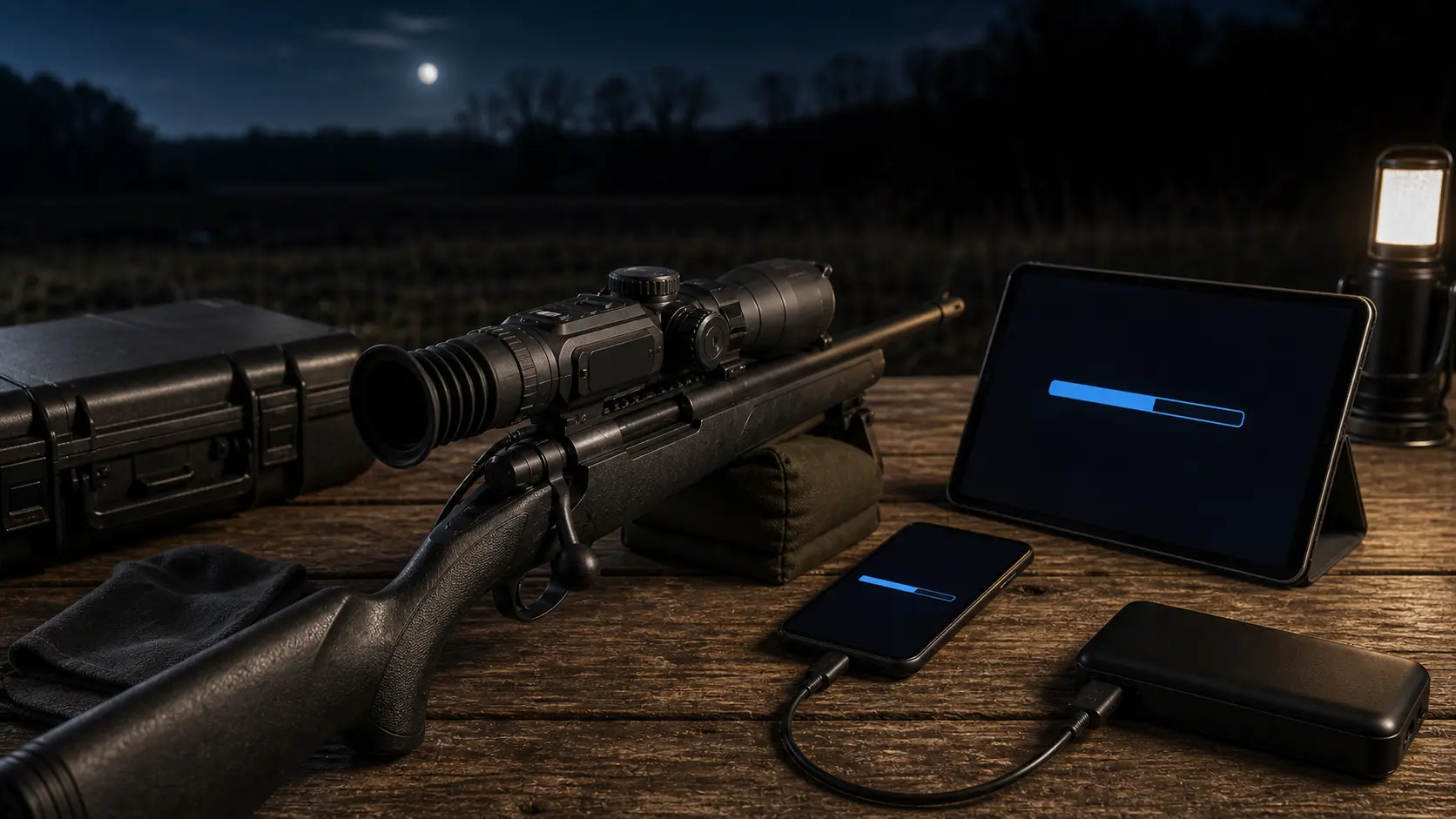
Thermal Scope Firmware Updates Explained: Apps, Zero Profiles, Failed Updates, and Pre-Hunt Checks
This article covers all things about thermal scope firmware updates, including apps, zero profiles, failed updates, and pre-hunt checks.
Firmware updating for a thermal scope is not a process like updating a weather app on your phone. The scope is attached to a rifle, it could possibly hold your zero profiles and you could be relying on it for a hog hunt or coyote stand tonight. Firmware updates are helpful, however they need to be treated with the same discipline that you give to mounting, zeroing, battery preparation and thermal scope maintenance.
The correct method is easy to remember: make changes at home, note your settings, use only what the manufacturer specifies for your model, maintain power stability, and test fire the rifle before heading out on hunt. An app displaying a notification while you’re hunting partner is loading magazines isn’t the right approach and neither is a thermal scope software update in the truck.
This guide is not a substitute for the Pulsar, AGM, ATN, Armasight, InfiRay, Nocpix, RIX, iRay or other manufacturer manual. What I want a hunter to do before he or she puts faith in a smart optic in darkness.
In short, yes, you should update the thermal scope firmware prior to a hunt when you have time to verify it afterward.
Do not update the thermal scope’s firmware if the scope is functioning correctly and the hunt is tonight, unless the manufacturer states that the update addresses a problem that is directly related to how the thermal scope is used. A working optic that has known settings is typically more effective than a new optic that hasn’t been checked. The simple answer is thermal scope firmware prior to hunting is the plain truth.
If it is a normal thermal scope firmware update, then take care of it several days prior the hunt. Write down the zero coordinates and profile name, charge scope, use the appropriate app, USB cable, computer, or microSD and then verify scope at the range before returning it to the truck.
The Safe Rule for Hunters
If the optic is working, and you need it ASAP, wait. When updating, give yourself time to deal with issues related to app connectivity, lost settings, menu changes, recording, or a point of impact question.
When an Update Is Worth Doing
It may be worthwhile to update the firmware if it fixes:
- Lockups, frozen screens or stability issues that are known
- Issues with the image processing or issues with the NUC behaviour.
- Reticle, profile or ballistic tool improvements
- Ballistic app update support for Rangefinder or thermal scope
- Recording, Wi-Fi and app connection fixes
- Manufacturer-recommended reliability updates
This is particularly the case with smart thermal scopes that offer a combination of optic, phone app, recording system, range tools and menu structure.
When to Wait
Wait if: battery is low, phone reception is not good, update notes are unclear, you cannot verify the correct file, you are on the verge of going on a paid hunt. Wait as well if other users with the same model are experiencing a thermal scope update failed issue and the manufacturer hasn’t stated how to fix it.
Firmware is the software that powers a thermal scope.
Firmware is the internal software that instructs the scope on its behaviour. That can involve image processing, palettes, brightness behavior, menu structure, reticles, zero profiles, Wi-Fi, onboard recording, standby mode, laser rangefinder communication, ballistic calculations and app communication, on a thermal image.
This is why a firmware change is more important here than it would be on a plain old glass. None of the features associated with a traditional daytime scope, no firmware version, no video recorder and no thermal scope Wi-Fi app. A modern thermal scope is an electronic imaging system having software built in aiming features.
Firmware, Mobile App, Ballistic App – What’s the Difference?
Don’t presume one update is all you need. Any updates to the scope firmware, phone app, or ballistic/cloud app can be made independently. A thermal scope app update might alter the way your phone connects to the optic, but will not alter the firmware within the scope. Even if your phone app is identical, a firmware update might alter the scope.
If your optic has Pulsar’s Stream Vision 2 firmware-update workflow, a Pulsar firmware update page, an ATN firmware update path, an AGM thermal firmware update package or another brand workflow, follow the model-specific support page. Never intermingle instructions between product lines.
The significance of Firmware for Smart Thermal Scopes compared to traditional Glass Scopes.
Thermal detail isn’t all about the lens and sensor. It is the processor that determines the way the scene is displayed. Menus determine the speed of getting to a setting. Recording, loading a profile, and waking the optic out of standby are controlled by software. That’s important part of the hunting system, not merely tech.
Some things can change after a Firmware Update.
When properly performed, most updates are no big deal. Before a hunter takes the rifle to be trusted, however, he or she should be familiar with what changes can occur.
Image Processing and Thermal Detail
The updates could change the contrast mode, sharpness, palettes, NUC timing or how the scope deals with humid low contrast nights. That doesn’t imply firmware can make an inferior sensor a fancy optic, however. It can’t alter the hardware which is already in the device, just a way to alter its use.
Reticles, Zero Profiles, and Ballistic Tools can be used for this.
One important question: Was the update completed? It is “Does the correct profile for the rifle exist?” Verify thermal scope zero profiles, profile names, reticle type, zero distance, coordinate values, caliber, ammo and ballistic data. If the optic is included with a rangefinder, make sure that thermal scope range estimation capabilities continue to function as desired.
Recording, Wi-Fi, and App Features
Some of the features that may be impacted by firmware include video clips, recoil-activated recording, file transfer, Wi-Fi pairing, and the thermal scope video recording app. Try out a thermal scope video recording and Wi-Fi apps before you hunt if you are using them. Not saving a clip is annoying. If the thermal scope app connection fails during setup, it can also mask a larger setup issue.
The layout and controls of the menu.
Settings can be shifted after updating the thermal scope software. A shortcut can be changed. Units, brightness, standby, or recording may be reset to their default values. Take 10 minutes to get used to the new menu at home, rather than during a coyote visit.
Writing it Down: What Matters Before You Update.
This is the step that many hunters miss. It’s also the key that keeps the hunt alive.
The coordinates and profile names are recorded.
Record or take pictures of all of the rifle profiles you like. Profile name, rifle, caliber, load, zero distance, X/Y coordinates if applicable, reticle, magnification reference, thermal scope reticle settings and ballistic settings. Don’t rely on memory when using more than one rifle. Photograph the screens.
Display the current settings with photos to save them.
The simplest form of thermal scope setting backup is photos of your phone. Record brightness, contrast, palette, NUC mode, image mode, reticle color, recording, Wi-Fi settings, standby mode, date & time, units & app pairing information.
Follow the manufacturer’s instructions.
Refer to instructions for your specific model and year. One brand could have an app-based update on one device while the other has a computer or microSD update. Riflescopes, clip-on and monoculars and older model may update differently even within the same brand.
Charge Everything First
Battery and external pack, scope, phone, laptop and any other devices used should be charged. Before extended update sessions or cold weather preparations, verify thermal scope battery life. One of the few errors that can make updating a service issue is a power failure.
App Update, USB Update, or microSD Update – which one does it apply?
There’s no one-size-fits-all update process. Depending on the brand, model, firmware package and current software version, there are different paths to follow.
App-Based Updates
There are some scopes that give an update via mobile app and Wi-Fi. If so, the device might require the Internet to download the file, and a direct connection to the optic for installation. Keep the devices close, avoid distractions as directed by the manufacturer and don’t walk around with the phone in your pocket during an update.
Updates can be made via USB or computer.
Other models require a USB cable and computer. A good cable, no loose ports, laptop sleep disabled and no bumping of the setup. A cable disconnect can cause the same issues as loss of power.
microSD Card Updates
Some devices will need a firmware file to be stored on a microSD card. After the update, follow the card format, file name, file location and deletion instructions. If the file is placed in the incorrect folder or is left on the card, this may create confusion during the next boot up depending on the device.
Instructions from one model should not be mixed with instructions from another model.
Never use a forum download or model file for a device that looks the same or a shortcut from another device family. It’s not a fun experiment to run the wrong firmware. When in doubt, come to a halt and call the manufacturer.
There are several potential risks when updating firmware.
Power Loss
The scope might not boot-up if battery dies during the update or might require factory service. Always use a full (stable) battery and external power if supported by the manufacturer.
Cable Disconnects
Updates via computer require a secure cable connection. Place scope and laptop on a bench, not on a tailgate where the cable can become loose.
Wrong Firmware File
This is the biggie. A file for another sensor, generation or product line can lead to serious issues. Update notes and model number must match.
App or Wi-Fi Dropouts
Some update workflows can be interrupted by phone sleep settings, notifications, weak wi-fi, app crashes, and changing networks. If you already have an unstable thermal scope Wi-Fi app, repair the connection prior to beginning the update.
Lost Settings or Confusion After Update
If the update does not change any settings, check them anyway. Don’t expect that the active profile is right even if there’s a profile list.
Once your thermal scope firmware has updated: what to check before hunting.
This will confirm the firmware version.
Open scope menu or app and verify the firmware version displayed on the scope. If the version did not change, then the update might not have installed.
Recheck Zero Profiles and Reticle Settings as required.
Verify active rifle profile, rifle profile names, zero distance, reticle, reticle color, and holdover and ballistic settings. To find out more about its significance, check out thermal scope reticles explained and zero profiles.
Verify Image Settings
Set image to hunting base line: palette, brightness, contrast, sharpness, NUC mode, focus, diopter, scene mode. Do it outside, not looking at a warm house wall.
Using Test Recording, Wi-Fi, and App Connection.
Start recording a short video, reconnect the app, download it or watch it, and try out any remote control options you use.
Check the batteries and confirm their standby behavior.
Test startup, shutdown, sleep, wake up time, external power and thermal scope standby mode. Firmware is capable of altering a few behaviors that may make a difference during a prolonged stand.
Range Check Before a Real Hunt
Check P.O.I prior to hunting. Shoot a controlled group at your known ZD, using the same rifle, mount and ammo. When something feels like it’s not right, perform a complete thermal scope zeroing.
After upgrading the firmware do you need to re-zero the device?
Not always. But the question, “do you need to re-zero after firmware update” should never be asked from the couch. Always check for zero before you trust the rifle.
When a Zero Check Is Enough
After a minor app or feature update with no factory reset, no profile changes, no mount movement and typical operation, a zero check may suffice.
When to Re-Zero
Re-zero after lost profiles, factory reset, changed reticle data, major firmware change, new ballistic setup, remount, miss for any reason, and a doubt about the point of impact.
The importance of verifying for ethical hunting practices.
Firmware discipline is not tech neatness. It’s about hunting ethics. One miss’s hog is one thing. A wounded animal is another caused by a hunter, who failed to make a zero check.
If the update fails, try the following:
Don’t push buttons at random solutions during a thermal scope firmware failed situation.
Never keep restarting and reflashing randomly.
Stop and read the instructions for recovery if thermal scope frozen after update, thermal scope black screen after update, or thermal scope not responding after update problem occurs. It can be difficult to get support if the same step is repeated and it fails.
Follow the Official Recovery Instructions.
Brands may offer recovery options or alternate ways to recover for certain device families. Follow the official support route — only on your model. If the thermal scope update was unsuccessful due to a file, power, or connection issue, the solution might be model-specific.
Always contact Support before opening the scope.
Don’t open the optic. That can cause problems with seals, invalidation of warranties and a greater problem than the bad update.
To preserve evidence of version, serial number and error messages.
Record the serial number, old and new firmware version (if known), app version, the name of the update file, the exact error message, and what occurred. Photos and brief videos are useful for aiding diagnosis.
Firmware updates are a factor when purchasing.
Good App Support Matters
An easy-to-live-with smart thermal when the app, manuals, firmware downloads, version notes, and support pages are clear. Even with the best hardware, if the update process is hard to follow, it can be frustrating.
Long-Term Support vs One-Time Specs
Firmware support may help maintain stability and usefulness but don’t purchase a weak optic expecting future firmware updates to correct hardware restrictions. Firmware is not a substitute for a better lens, better sensor, better stability, better field judgment.
What to Check Before Buying
Prior to purchasing a smart scope, check for user feedback, warranty details, manuals and update history, app reviews, and firmware notes. That’s an issue if the brand does not have an explanation on how the updates work.
Pre-Hunt Firmware Checklist
This thermal scope pre-hunt checklist is to be used following each significant update:
- Monitor for changes at home, not in the field.
- Read the instructions for the model before you begin.
- Charge Scope, phone, laptop and battery packs.
- Take pictures of zero profiles, coordinates, reticle settings, image settings.
- Use the appropriate APP / USB / COMPUTER / MicroSD card.
- Do not turn off power during the complete update.
- Post update: Check the firmware version.
- Profile, reticle, image, recording, Wi-Fi, standby, units, retest.
- Do a Zero and/or P of I Check before hunting.
- Have backup power, and don’t do significant firmware changes just prior to a trip.
Common Mistakes to Avoid
Updating the night before a paid hunt.
This is what a quick upgrade can become a tainted vacation. Update early or after hunt.
Assuming all models of a single brand update the same way.
They do not. Follow model directions exactly.
Forgetting to Record Zero Coordinates
Photos can save hours if your thermal scope zero profiles go offline or reset.
When you factory reset, it is easy to think of it as you are doing a small setting change.
Some crucial selections may be reset to their factory defaults during a thermal scope factory reset. Reestablish and test setup prior to hunting.
A phone/laptop sleep mid-Update may cause the app to crash.
Disable sleep and interruptions before you start.
Using a Loose USB Cable or Low Battery
Both can stop it going. Don’t treat it as a simple phonesync, but as a bench job.
Skipping the Range Check
The rifle will not be considered verified until it has been checked after the update. Even if the behavior appears to be a more general issue with the device, follow a focused night vision troubleshooting guide as well, but keep in mind that analog night vision and thermal scopes are two distinct systems.
Final Takeaway
Firmware updates for thermal scopes are not like receiving a message on your phone, but rather a part of owning a modern hunting optic. Update early, note settings, read manual, ensure power is maintained, and check zero.
DON’T touch it if the scope is working and the hunt is tonight. If the update is to correct a true problem, install it diligently and allow sufficient time for testing the optic after the job. The idea is not to get the latest firmware number. The ultimate objective is to have thermal scope that functions with the field goes dark.
Can You Use a Thermal Scope During the Day? Daylight Use/Sun Safety and Zeroing Tips.

Night Vision Range Explained: Detection, Recognition, Identification, and Real Hunting Distance
How to Set Up an IR Illuminator for Night Vision: Placement, Beam Width, and Field Mistakes